Written by
on
If you’ve ever wished your spreadsheet could think, you’re going to love this update.
Google has added a new tool called the =AI() function to Google Sheets. It lets you talk to your spreadsheet using plain language—just like chatting with a coworker. You can ask it to write, organize, or even clean up data for you.
For higher ed and healthcare marketers, this means fewer late nights sorting data or writing repetitive copy—and more time focusing on strategy, storytelling, and results.
One important reminder: We never recommend putting Protected Health Information (PHI), or anything sensitive, into any AI tool. That includes Google’s AI features.
What the =AI() Formula Does
The new =AI() formula turns Google Sheets into an AI assistant. Instead of typing numbers or formulas, you can type a simple request, such as:
=AI(“Summarize the comment in this cell”)
and it will do it for you. It can:
- Draft short pieces of text (like headlines or social posts)
- Clean and organize messy data
- Summarize survey feedback
- Personalize messages for different audiences
You can even connect it to other cells, so it automatically pulls information and adjusts your prompt.
Not everyone can use it just yet. If your school or organization uses Google Workspace, you’ll need the Gemini add-on, basically Google’s built-in AI helper that works across Docs, Sheets, Slides, and Gmail.
If you’re using a personal Google account, you’ll need the Google One AI Premium plan, which gives you access to the same Gemini tools inside your everyday Google apps.
But it’s rolling out fast, and it’s already changing how teams work.
Why This Matters for Marketers
If you work in marketing, you know that data and content pile up quickly. You might have:
- Hundreds of survey responses to analyze
- Thousands of web pages that need SEO descriptions
- Lists of names that need personalized messages
With AI built into Google Sheets, you can do all of this in one place, without exporting files or using separate tools. It’s faster, safer, and a lot more fun to use.
Let’s look at five real examples of how it can help.
1. Create SEO Copy in Seconds
Writing hundreds of meta descriptions for a university or hospital website is time-consuming.
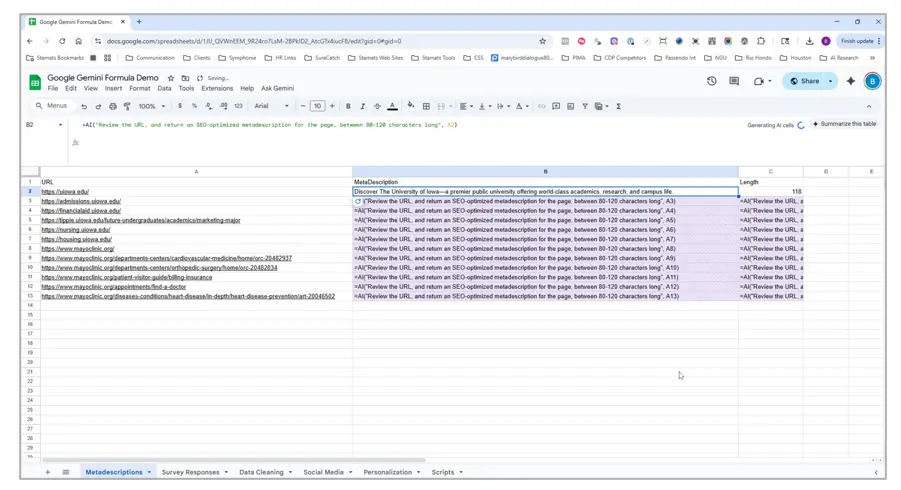
The =AI() function can do it for you. Just type the formula below directly into the cell where you want the meta description to appear:
=AI(“Review the URL and return an SEO-optimized meta description, 80–120 characters long”, A2)
It scans each page, understands the content, and writes a short, catchy description that fits search best practices. It’s like having a digital copywriter sitting inside your spreadsheet.

2. Sort Survey Answers Automatically
Open-ended survey questions are full of insights, but reading hundreds of responses is slow. Now you can ask AI to label and organize them.
=AI(“Classify this answer as Positive, Negative, or Mixed”, A2)
The formula reads each response, figures out how the person feels, and tags it. You can even ask it to group answers by theme—like “Academics,” “Financial,” or “Campus Life.”
The results are a clean, color-coded view of what your audience is really saying.

3. Clean Up Messy Data
Data from different sources can be a nightmare. You’ll see “TX,” “Tex,” and “Texas” all in the same column—or job titles that don’t match. AI can clean that up in seconds.
=AI(“Standardize the job title in the referenced cell into one of the following categories: ‘Executive’, ‘Marketing’, ‘Sales’, ‘IT’, or ‘Other’.”,B2)
It understands context, not just text, so it knows “Tex.” means “Texas.” You end up with clean, consistent data that’s ready for segmentation, personalization, or reporting.

4. Write Social Media Posts from a Blog
You spend hours writing a blog post, but sharing it across platforms sometimes takes just as long. With =AI(), you can paste your blog’s URL and tell it to create multiple post versions:
=AI(“Write a professional LinkedIn post for the article at the referenced URL. Start with a question to hook the reader and focus on the value for parents and students.”, B2)
You’ll get short, platform-ready drafts you can modify in seconds. Some for LinkedIn, others for X (Twitter), or even Instagram caption ideas. It’s a quick way to turn one story into a full social campaign.

5. Personalize Emails or Messages
Generic emails are easy to spot—and easier to ignore. The =AI() formula lets you write something personal for each person on your list.
Let’s say you have someone’s name in column A and their program of interest in column B. Try this:
=AI(“Write one friendly, encouraging sentence for an email to “&A2&” about why our “&B2&” program is a great choice.”)
It will create a one-of-a-kind line for each contact. You can even tell it to change tone or include specific program features.

A Quick Note on Privacy and Access
When you use =AI(), your prompts and any connected data are processed through Google’s secure servers, just like Gmail or Docs.
If your college, university, or healthcare system uses Workspace, the data stays covered under your existing privacy agreement. Most accounts have generous use limits, but it’s still smart to keep AI tasks focused and strategic.
And if you handle sensitive information, check with your organization about HIPAA requirements before creating, sorting, or analyzing any data in Sheets.
What’s Next
Google is already testing new tools like AI.ASK and AI.FILL, which will make it even easier to automate your work.
At Stamats, we’re keeping an eye on these updates so we can help our clients get more done, without adding more platforms or steps. Because sometimes, the smartest marketing tools are the ones hiding in plain sight… like a spreadsheet.
The =AI() function isn’t about replacing people. It’s about giving you time back—so you can focus on the human parts of marketing: strategy, creativity, and connection.
We love testing new tools and sharing what works best for higher ed and healthcare teams.
Ready to Get Started
We can help you figure out where AI can save you the most time.